What Is Facebook Pixel (Meta Pixel)?
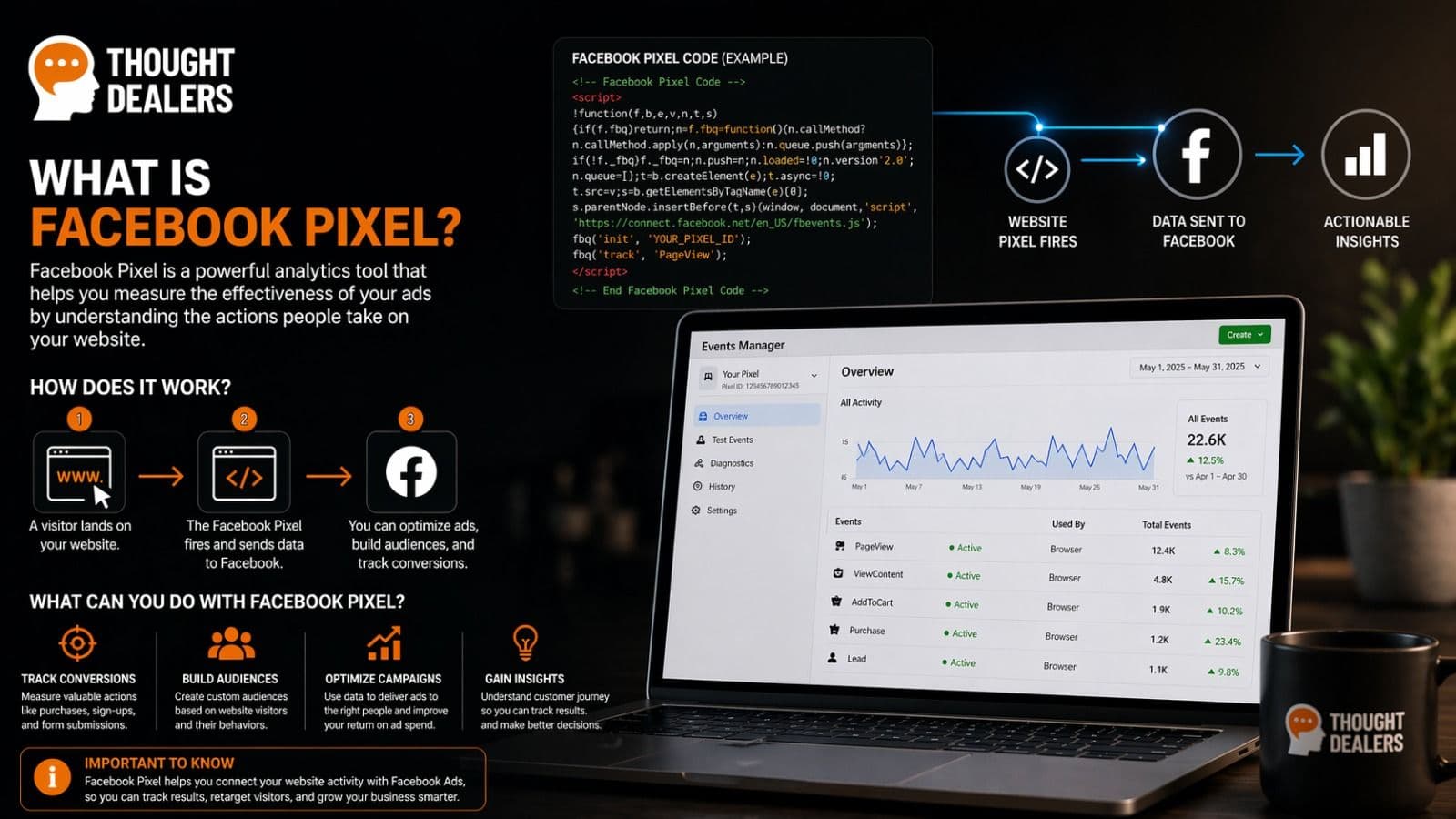
Meta Pixel (formerly known as Facebook Pixel) is a free tracking tool created by Meta that helps businesses understand what people do on their website after clicking Facebook or Instagram ads.
It is a small piece of code installed on your website that sends valuable conversion data back to Meta Ads Manager.
With Meta Pixel, you can:
- Track visitor actions on your website
- Measure ad performance
- Improve ad targeting
- Build remarketing audiences
- Increase conversions
- Reduce wasted ad spend
Think of it as a smart assistant for your advertising campaigns.
Without tracking, ads rely on guesswork. With Pixel data, Meta can optimize your campaigns based on real user behavior.
For example, it can track whether someone:
- Visited a product page
- Added an item to cart
- Submitted a contact form
- Started checkout
- Completed a purchase
That information helps your ads become more effective over time.
Why Is Facebook Pixel Important?
Many businesses spend money on ads without knowing what actually works.
Meta Pixel solves that problem by showing real results and helping campaigns improve automatically.
1. Track Real Results
Instead of only seeing clicks or impressions, you can track valuable actions such as:
- Leads
- Purchases
- Signups
- Page views
- Add to cart events
- Contact requests
This helps you understand which campaigns generate real business results.
2. Better Ad Optimization
Meta uses Pixel data to show your ads to people who are more likely to convert.
That means:
- Better quality traffic
- Lower cost per lead
- Lower cost per purchase
- Higher return on ad spend
The more quality data Pixel receives, the smarter your campaigns become.
3. Powerful Remarketing
Have you ever visited a website and then seen their ads later on Facebook or Instagram?
That is remarketing.
With Meta Pixel, you can show ads to people who:
- Visited your website
- Viewed specific pages
- Added products to cart
- Reached checkout but did not buy
- Opened your contact page
These users already know your brand, so they often convert faster and cheaper.
4. Build Lookalike Audiences
Meta Pixel can help you create Lookalike Audiences based on your best customers.
This allows you to reach new people who behave similarly to your existing buyers or leads.
It is one of the most effective ways to scale successful campaigns.
Is Facebook Pixel Still Called Facebook Pixel?
Meta officially rebranded Facebook Pixel to Meta Pixel.
It is the same tool, but with a new name.
Many people still search for “Facebook Pixel,” so both names are commonly used online.
How Does Facebook Pixel Work?
Here is the simple version:
- A visitor lands on your website
- Meta Pixel loads in the background
- It records actions (called events)
- Data is sent to Meta Ads Manager
- Meta uses that data for reporting and optimization
There is no magic involved—just smart tracking powered by data.
What Can Meta Pixel Track?
Meta Pixel tracks actions that users take on your website. These actions are called events.
Standard Events Include:
- PageView
- ViewContent
- Lead
- AddToCart
- InitiateCheckout
- Purchase
- CompleteRegistration
- Contact
- Search
Example:
- If someone submits your contact form, Pixel can fire a Lead event.
- If someone buys a product, it can fire a Purchase event.
- If someone views a product page, it can fire ViewContent.
Who Should Use Facebook Pixel?
Meta Pixel is useful for almost any business that advertises online.
Ecommerce Stores
Track:
- Product views
- Add to cart actions
- Checkout starts
- Purchases
- Revenue
Service Businesses
Track:
- Quote requests
- Contact forms
- Phone calls
- Booking requests
Coaches and Consultants
Track:
- Webinar signups
- Discovery calls
- Downloads
- Lead forms
Bloggers and Content Sites
Track:
- Readers
- Subscribers
- Traffic sources
- Popular pages
If you run paid ads, you should use Meta Pixel.
How to Create Facebook Pixel
Setting up a Meta Pixel only takes a few minutes.
Step 1: Open Meta Events Manager
Go to: https://business.facebook.com/events_manager
Log in to your Meta account.
Step 2: Connect a Data Source
Inside Events Manager, click:
Connect Data Sources
Then choose:
Web
Step 3: Select Meta Pixel
Choose:
Meta Pixel
Then continue.
Step 4: Name Your Pixel
Use a clear name such as:
- Main Website Pixel
- Ecommerce Store Pixel
- Lead Generation Pixel
Step 5: Add Your Website URL
Meta may scan your website and suggest available integrations.
Once complete, your Pixel is ready.
How to Install Facebook Pixel on Your Website
There are several ways to install Meta Pixel.
Option 1: Manual Installation
Meta provides a code snippet.
Place it inside the section of every page on your website.
<script> Meta Pixel code goes here </script>
This method usually requires developer access.
Option 2: Use CMS Plugins
Many website platforms offer direct integrations, including:
- WordPress
- Shopify
- Wix
- Squarespace
- Webflow
Usually, you only need to paste your Pixel ID.
Option 3: Use Built-In Platform Integrations
Many platforms allow you to connect Meta Pixel without touching code.
Typical steps:
- Log in to your website platform
- Open Settings or Integrations
- Find Facebook Pixel or Meta Pixel
- Paste your Pixel ID
- Save changes
- Publish if needed
This is often the easiest option.
Where to Find Your Pixel ID
Your Pixel ID is a unique number linked to your tracking account.
Example:
123456789012345
To find it:
- Open Meta Events Manager
- Select your Pixel
- Copy the Pixel ID shown on screen
You can then add it to your website or platform.
How to Test If Facebook Pixel Works
Never assume your setup is working. Always test it.
Use Meta Pixel Helper
Install the Chrome extension:
Then visit your website.
It will show:
- Whether Pixel is installed
- Which events are firing
- Errors
- Duplicate tracking issues
This tool is extremely useful during setup.
Important Events to Set Up First
If you are a beginner, start with these events:
1. PageView
Tracks page visits automatically.
2. Lead
Tracks form submissions or inquiries.
3. Contact
Tracks contact button clicks or contact actions.
4. AddToCart
Tracks when a visitor adds a product to cart.
5. Purchase
Tracks completed sales.
Example Setup for a Service Business
Imagine you run a marketing agency.
You could track:
- Homepage visits
- Pricing page views
- Contact page visits
- Form submissions (Lead)
Then create ads targeting people who visited your pricing page but did not contact you.
This is a smart way to increase leads.
Example Setup for Ecommerce
For an online store, track:
- Product page views
- Add to cart actions
- Checkout starts
- Purchases
Then run remarketing ads to abandoned carts.
This is one of the most profitable ecommerce strategies.
What Is Conversion API (CAPI)?
You may also hear about Conversions API or CAPI.
This works together with Meta Pixel.
While Pixel tracks browser activity, Conversions API sends data directly from your server to Meta.
Benefits of Conversion API:
- Better tracking accuracy
- More reliable data
- Less impact from browser privacy changes
- Stronger attribution reporting
Best Practice Today
Use:
Meta Pixel + Conversions API
Together, they create the most reliable tracking setup.
Privacy and Cookie Consent
Depending on your location, you may need user consent before tracking visitors.
This is especially important in:
- European Union
- Norway
- United Kingdom
Use:
- A cookie banner
- A privacy policy
- Clear consent settings
Always follow local privacy laws such as GDPR.
Common Facebook Pixel Mistakes
Avoid these common mistakes:
1. Installing Pixel Twice
This can create duplicate events and inaccurate data.
2. Wrong Event Setup
For example, tracking a lead as a purchase.
3. Not Testing
Always verify setup with Meta Pixel Helper or Test Events.
4. No Custom Audiences
You miss valuable remarketing opportunities.
5. Ignoring Data
Tracking only matters if you use the data to improve campaigns.
How Long Does Pixel Need to Learn?
Meta campaigns improve with enough conversion data.
Meta often recommends around:
50 optimization events per week per ad set
Once enough data is collected, performance usually becomes more stable.
Be patient and allow campaigns time to optimize.
How to Use Pixel for Better Ads
Here are practical ways to use Pixel data:
Retarget Warm Traffic
Show ads to previous website visitors.
Exclude Existing Buyers
Avoid wasting budget on people who already purchased.
Find Similar Customers
Use Lookalike Audiences based on leads or buyers.
Optimize for Conversions
Instead of optimizing for clicks, optimize for leads or purchases.
Why Businesses Love Facebook Pixel
Meta Pixel helps answer the most important question in advertising:
Which ads generate real revenue?
Instead of relying on guesses, you can make decisions based on data.
That is why serious advertisers use proper tracking.
Quick Beginner Checklist
Before launching ads, make sure you have:
- ✅ Pixel created
- ✅ Pixel installed
- ✅ Events tested
- ✅ Lead or Purchase tracking active
- ✅ Custom audiences created
- ✅ Cookie consent enabled
- ✅ Campaign ready
Frequently Asked Questions
Is Facebook Pixel free?
Yes, Meta Pixel is free to create and use.
Can I use Pixel without running ads?
Yes, but it becomes far more valuable when connected to active campaigns.
Does Meta Pixel work with Shopify?
Yes, Shopify supports Meta Pixel integrations.
Can I track form submissions?
Yes, using events such as Lead or custom conversions.
Is Meta Pixel enough on its own?
Pixel is powerful, but the best modern setup is:
Meta Pixel + Conversions API
Final Thoughts
If you want better Facebook and Instagram advertising results, learning how Meta Pixel works is one of the smartest things you can do.
It helps you:
- Track what matters
- Improve targeting
- Lower ad costs
- Increase conversions
- Scale profitable campaigns
The best part is that once it is properly installed, it works quietly in the background while your marketing becomes smarter over time.
Start simple:
- Create your Pixel
- Install it
- Track one key action
- Launch campaigns
- Improve using data
That is how real growth begins.
Need Help Setting Up Facebook Pixel?
If you need help installing Meta Pixel, fixing tracking issues, or connecting Conversions API, contact our team and we’ll help you set everything up correctly.